Summary
In order for the Check Point MDR team to monitor your logs from your Cisco Meraki environment, we will require an API Key with the proper permissions defined.
**Please Note: In order for MDR to monitor this integration, an MX Device and access to Security Center will be required. This will allow access to Threat/Security Event reporting.**
If you need any assistance with this procedure, please open a ticket in the MDR Customer portal under "MDR Support" or if you are currently onboarding reply to your welcome email, and we will schedule a time to assist.
Note: We will need this item filled in on the MDR customer portal profile page when adding the integration also ensure the procedure outlined below is completed before adding:
• API Key
Procedure
Creating the API Key
-
In order to interact with the Dashboard API, you must first obtain an API key.
- Open your Meraki dashboard: https://dashboard.meraki.com
- Once logged in, navigate to the Organization > Settings page.
- Ensure that the API Access is set to “Enable access to the Cisco Meraki Dashboard API”

Then go to your profile by clicking on your account email address (on the upper-right) > My profile to generate the API key.
save this key in a secure location, as it represents your admin credentials
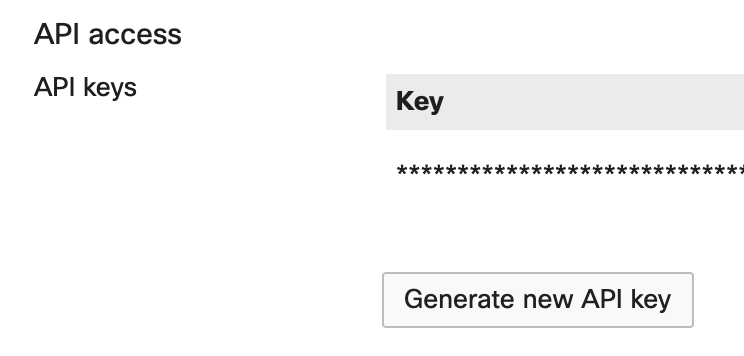
You will enter the key in the Cisco Meraki integration on the MDR portal in the MDR Profile section.