Summary
In order for the Check Point MDR team to monitor your logs from your Armis environment, we will require an API Client and Secret with the proper permissions defined.
If you need any assistance with this procedure, please open a ticket in the MDR Customer portal under "MDR Support" or if you are currently onboarding reply to your welcome email, and we will schedule a time to assist.
Note: We will need these two items filled in on the MDR customer portal profile page when adding the integration also ensure the procedure outlined below is completed before adding:
• Client Secret
• Client Domain
Procedure
Creating the Client Secret
- Log into the Armis application.
- Navigate to Settings > API Management on your Armis application.
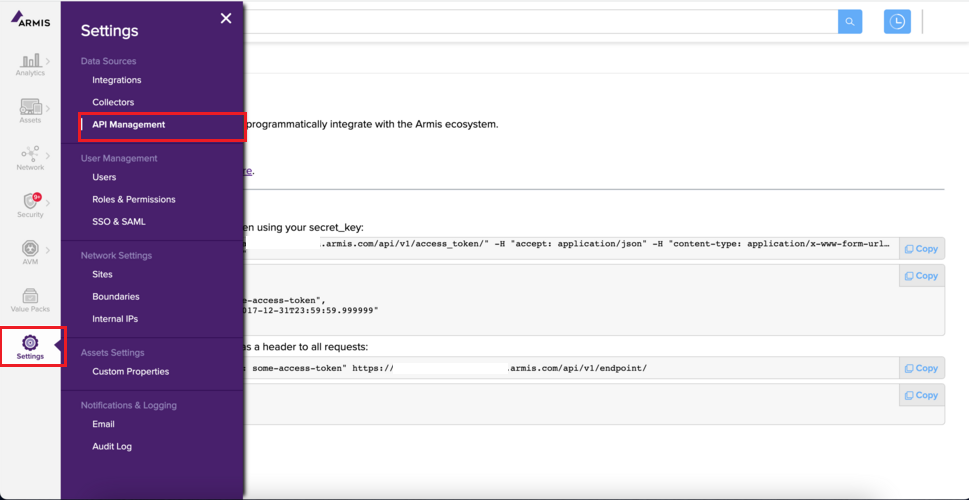
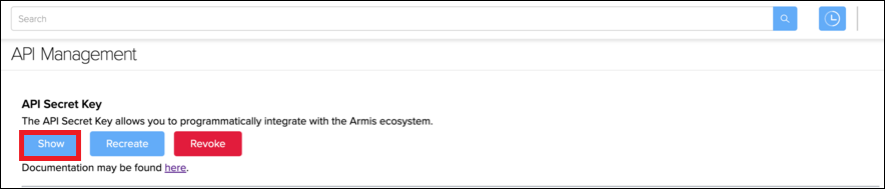
- Create a new API secret key if you haven't created one yet by clicking the Create button from the API Management page.

- Click Show to view the secret key.
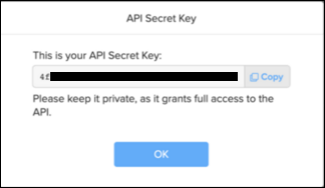
- A popup window will be displayed. Take note of the secret key and add it to the MDR Portal for the Armis integration.
- Your Armis domain will the the name at the beginning of your URL to access Armis. Take note of the domain and add it to the MDR Portal for the Armis integration.